In Part 1, we looked at photographing fireworks with a DSLR, mirrorless camera, or film SLR. That method depends on a tripod, manual focus, manual exposure, and Bulb mode.
A smartphone works differently. You are not trying to duplicate the serious-camera method. Phones rely on computational photography and motion-capture features, and the best approach is to use those strengths instead of fighting them. For the 250th, most people on the mountain will be holding a phone, not a tripod.
A newer iPhone, Samsung Galaxy, Google Pixel, or similar phone can do surprisingly well with fireworks. Older phones may struggle in low light, but even then, video can often save the night.
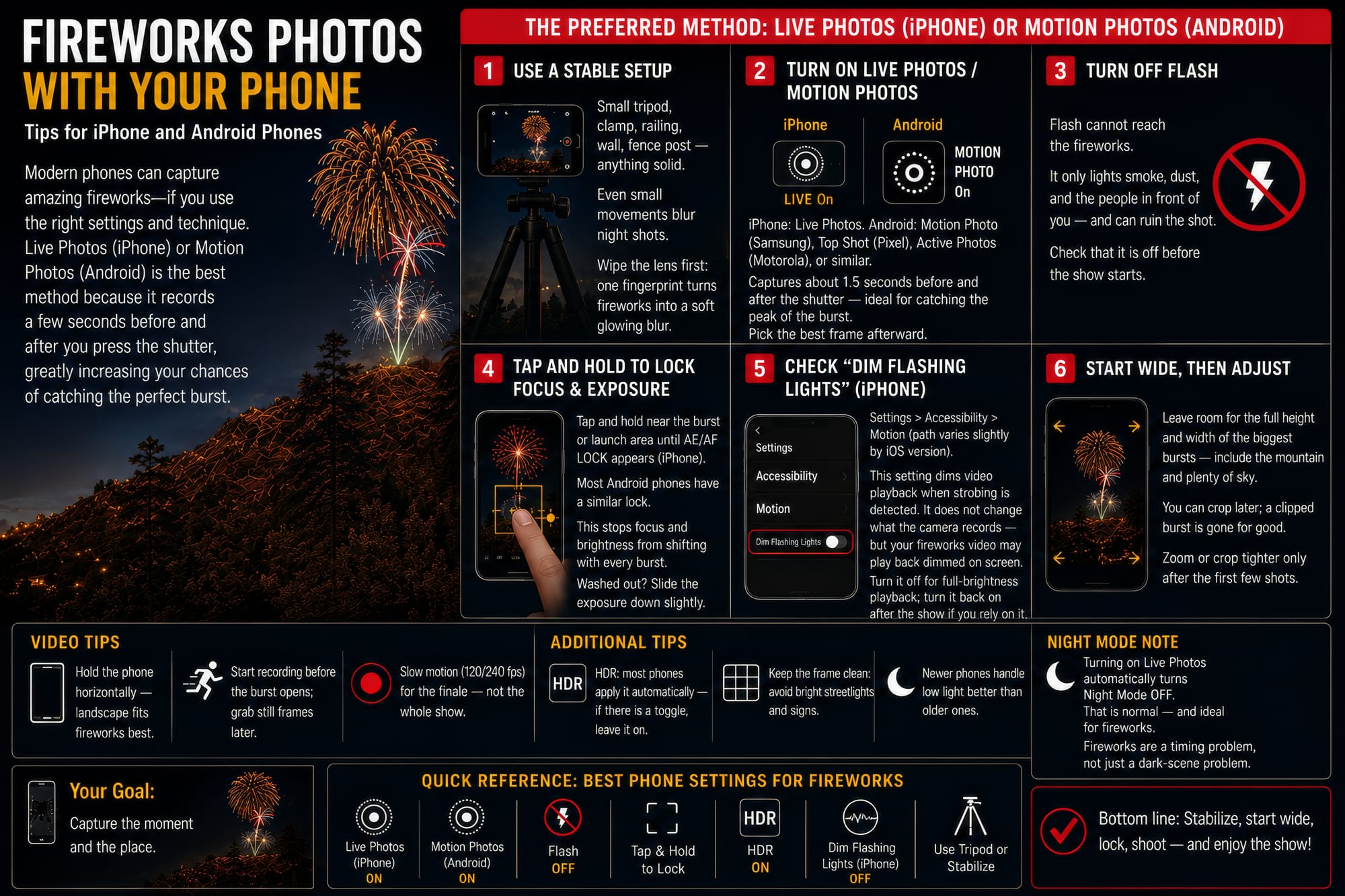
Keep the Phone Steady
This is the biggest improvement you can make. Use a small phone tripod, a clamp, a railing, a wall, a fence post — anything solid. Hand-holding may work for a quick video, but for still photos, a steady phone gives cleaner results.
Also, wipe the lens before the show. A fingerprint on a phone lens can turn fireworks into a soft, glowing blur.
Use Live Photos or Motion Photos
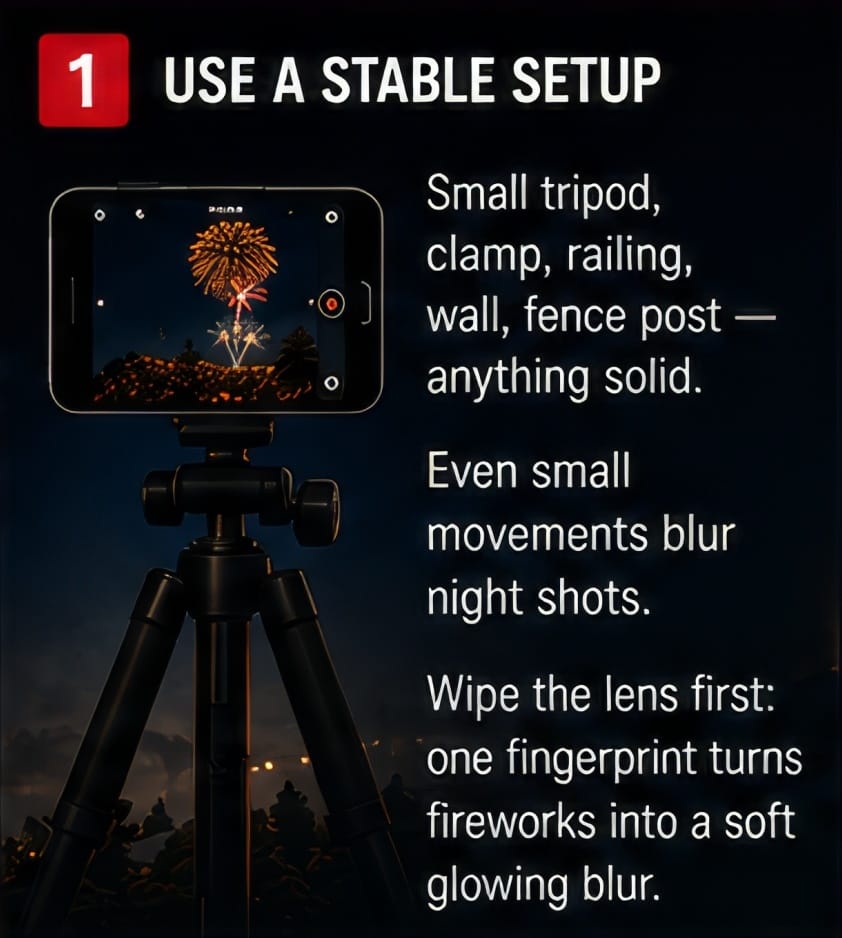
For iPhone users, the preferred still-photo method is Live Photos, not Night mode alone.
Turn on Live Photos before the show. When a firework begins to open, take the picture. Live Photos records about a second and a half before and after you press the shutter, which greatly improves your odds of catching the best part of the burst. Afterward, you can often choose a better key frame than the one the phone selected, or try the Long Exposure effect in the Photos app. Keep whichever version looks better.
Do not assume Night mode is the answer. Fireworks are not just a dark-scene problem; they are a timing problem. The sky is dark, but the fireworks themselves are bright. And the two features are mutually exclusive: turning on Live Photos automatically deactivates Night mode. That is normal, and for fireworks it is what you want.
For Android users, the equivalent is Motion Photo on Samsung, Top Shot on Pixel, and Active Photos on Motorola — same idea: the phone captures a short moment around the still photo so you can pick the best frame afterward.
Most modern phones also apply HDR automatically, which balances bright bursts against the dark sky. If yours has an HDR toggle, leave it on.
Turn Off the Flash
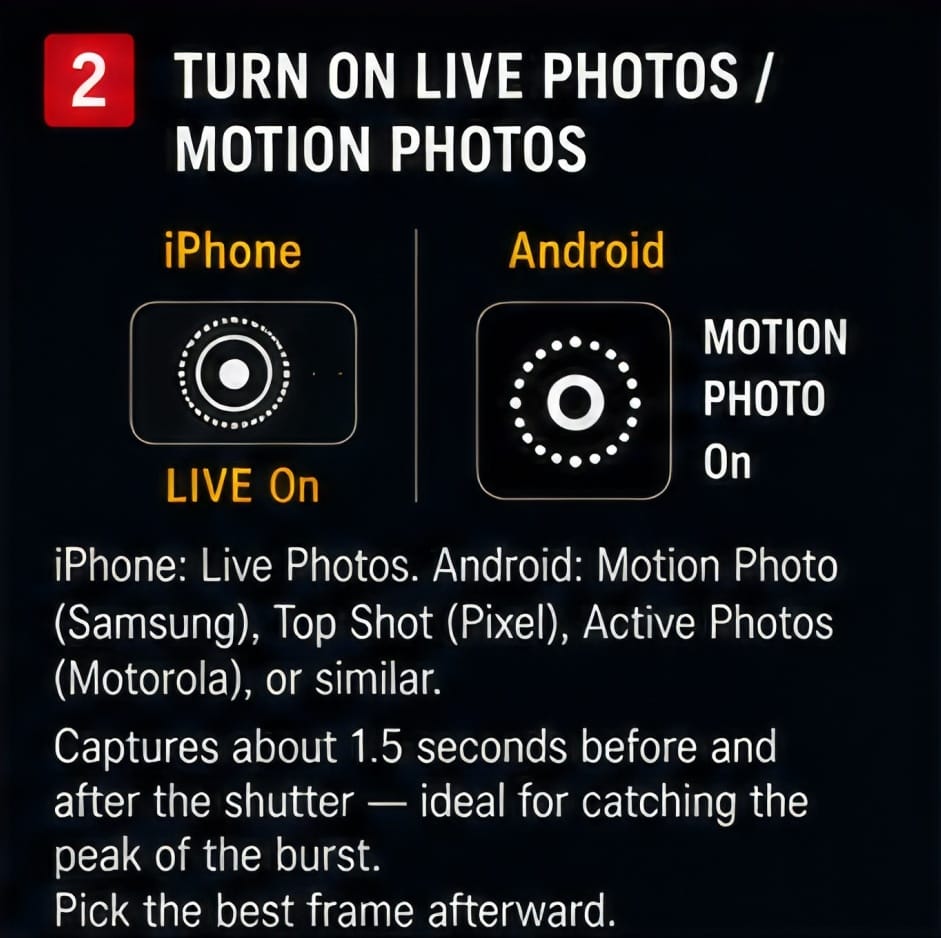
The flash will not help. It cannot reach the fireworks, and it will only light up people, dust, and smoke near the phone. Make sure flash is off before the show starts.
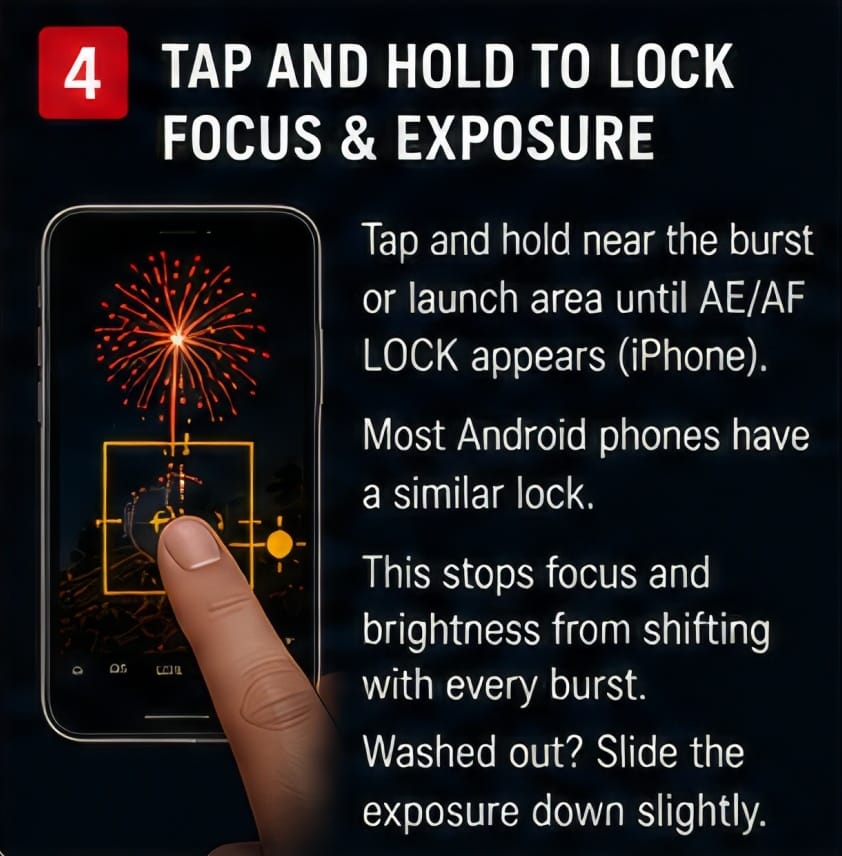
Lock Focus and Exposure
When a bright burst appears, tap and hold on the screen near the fireworks or launch area. On iPhone, this is AE/AF Lock; most Android phones have a similar lock. It keeps the phone from changing focus or brightness every time the scene changes. If the fireworks look washed out, slide the exposure down slightly after locking.
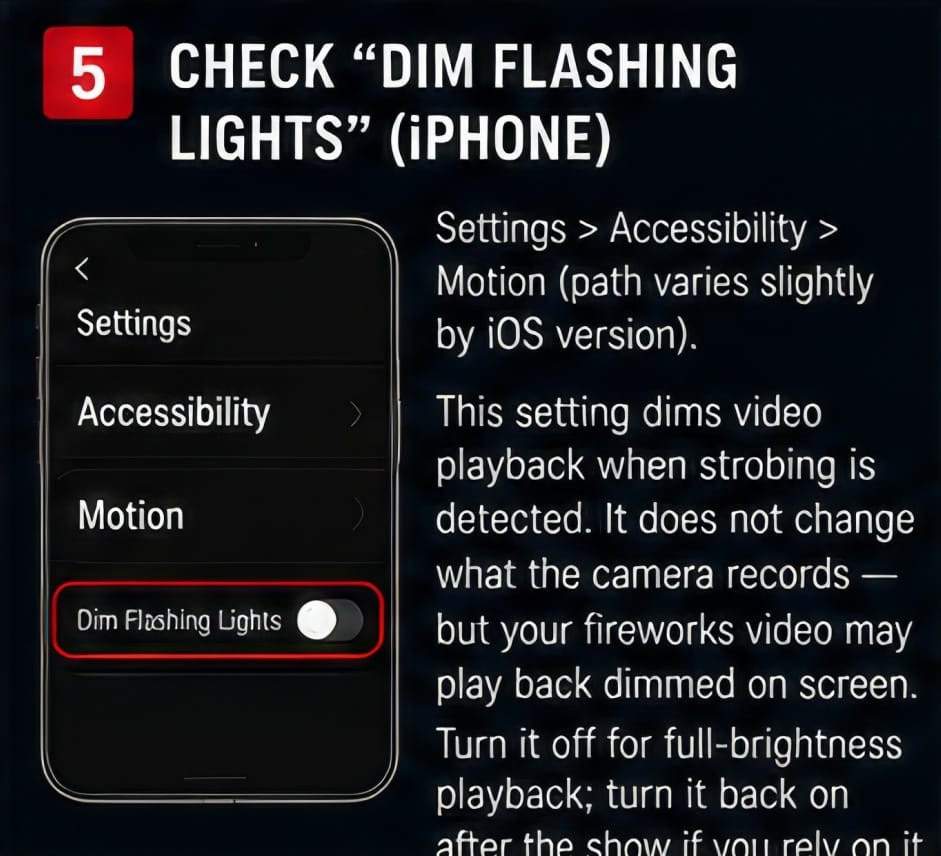
One iPhone Setting to Check
Before the show, iPhone users should check Dim Flashing Lights, under Settings > Accessibility > Motion (the path can vary slightly by iOS version).
This accessibility feature automatically dims video playback when the phone detects flashing or strobing — a useful safeguard for people sensitive to strobe effects. It does not change what the camera records; the file itself is fine. But it means your fireworks video may play back dimmed on screen. If you want full brilliance on playback, turn it off before the show, and back on afterward if you normally rely on it.
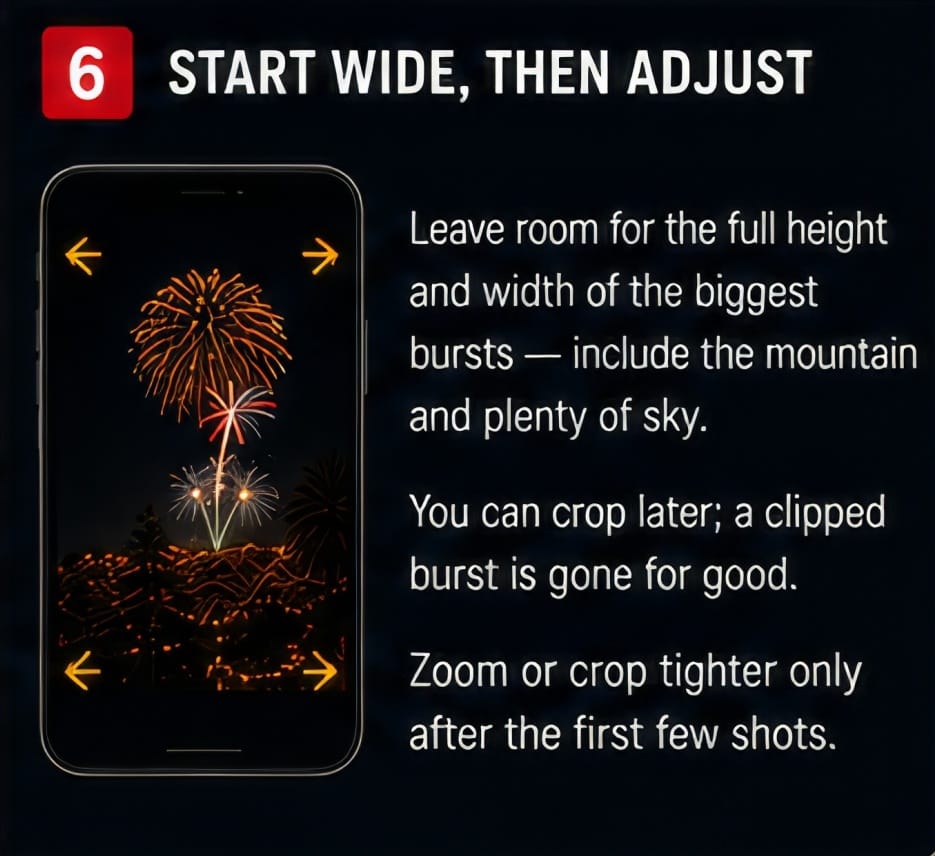
Start Wide
Fireworks rise higher and spread wider than expected. Include the mountain, plenty of sky, and room on both sides for the largest burst. You can crop later. If you zoom in too much at the start, the best firework of the night may land partly outside the frame.
For Mt. Rubidoux, include the hillside, trees, spectators, or city lights if they help the picture. Consider orienting the phone in landscape format to get a wider view.
Use Video as Backup
Video may be the simplest way to get something good. Hold the phone horizontally — landscape orientation fits fireworks better because the bursts spread across the sky, and it works better on most screens.
Start recording before the burst opens and keep the phone steady. Later, you can grab still frames from the video — not as detailed as a dedicated photo, but they may capture moments you would otherwise miss.
Slow motion can be interesting during the finale, but do not shoot the whole show that way.
Quick Phone Recipe
• Stabilize the phone. Wipe the lens. Turn off flash.
• Start wide.
• Use Live Photos (iPhone) or Motion Photo / Top Shot / Active Photos (Android).
• Tap and hold to lock focus and exposure; lower exposure slightly if bursts look washed out.
• Take the picture as the firework opens; pick the best frame afterward.
• iPhone: check Dim Flashing Lights if you want full-brightness playback.
• Shoot some landscape video as backup.
With a serious camera, you control the exposure and time the fireworks yourself with Bulb mode. With a phone, the better strategy is to keep it steady and let its motion-capture features handle the timing.
The bottom line: stabilize the phone, start wide, turn off flash, use Live Photos or Motion Photos, lock focus and exposure, and do not forget video. Sometimes the best phone result is not a still photo but a short, steady clip that captures the light, the sound, and the energy of the show — which, this year of all years, is worth keeping.
One last tip: If you are brave enough to be out during a lightning storm, you can use the same techniques for a good lightning photo. However, you may need to spend more time. Be safe if you do.
Photos accompanying this series are actual fireworks photographs the author took at a past Mt. Rubidoux show — evidence that the methods described here produce real results.